AI Character Photo Prompts: Revise One Detail at a Time
If a character photo misses the coat color, pose or framing you wanted, save the prompt and name the main mismatch before trying again. Change one requested detail, then check the next image against the same criteria. The prompt pair below changes only a raincoat's color. It is a text exercise; no photos were generated for this guide.
Updated by the tempteo editorial team
The writing examples below are invented. They illustrate the advice and are not recorded chat results.
On this page
Decide what the next image needs to show
Choose an adult fictional character and one scene. Write down the visible details you care about: where the frame cuts off, what the character is doing, the garment and its color, and what belongs in the background. Leave private information and real-person likeness requests out of the exercise.
If you already have a result, describe the main mismatch in ordinary words, such as "the umbrella is open" or "the coat should be navy." If you cannot tell whether a detail matches, record that uncertainty. For a first request, use these details as your checklist.
Keep the scene readable. "Standing beside a wooden railing, shown from the knees up" gives you a pose and a framing choice to inspect. Extra adjectives do not tell you which part to fix. Choose the most important mismatch for the next revision and leave the other requested details alone.
Keep the full prompt and change one color
Save the complete baseline before editing it.
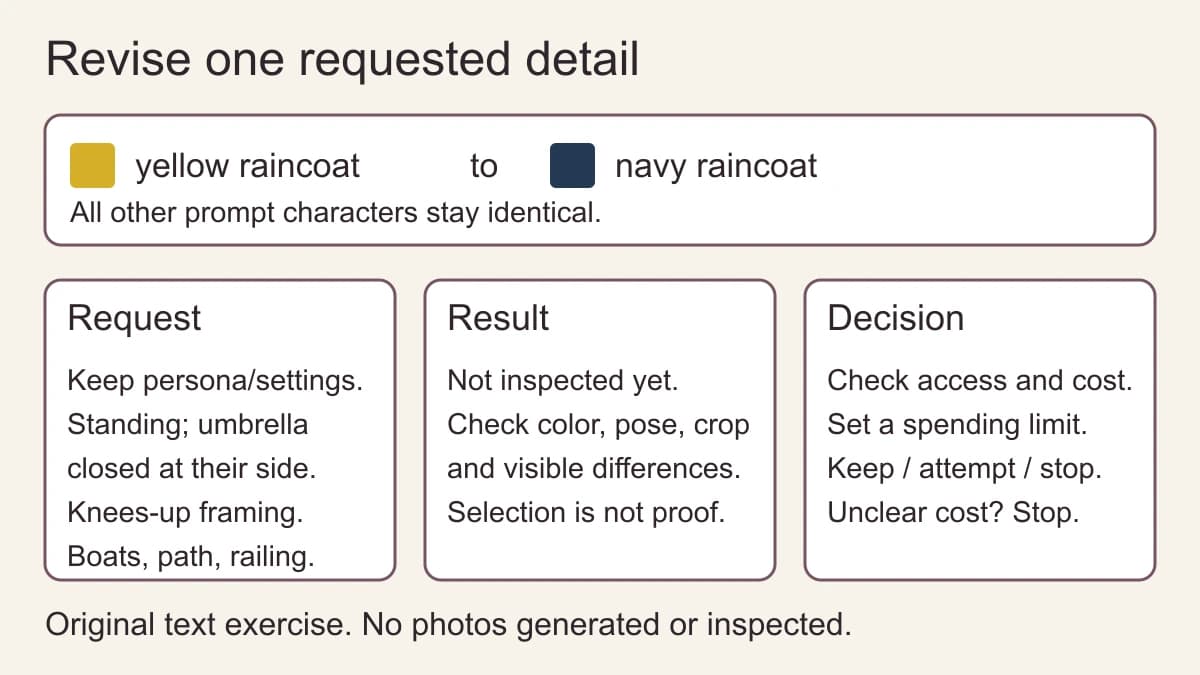
Baseline: An adult character standing on a harbor path beside a wooden railing, shown from the knees up. They wear a yellow raincoat and hold a closed umbrella at their side. Overcast daylight, calm expression, boats in the background.
Revision: An adult character standing on a harbor path beside a wooden railing, shown from the knees up. They wear a navy raincoat and hold a closed umbrella at their side. Overcast daylight, calm expression, boats in the background.
The only text change is "yellow" to "navy." Keep the selected character and any other settings you recorded unchanged too. If the pose is the problem instead, revise the pose clause in your own baseline and leave the coat, framing and background wording alone.
A single text change makes the request easier to compare. The revised prompt asks for a new image. Its face, pose or background can still change even when the selected character stays the same.
Copy a request and result card
Keep the prompt beside the result notes. Fill in the requested details before an attempt, then add observations only after inspecting an actual image.
Request and result template
Date and tool: Selected character/persona to keep: Other settings actually shown, or none: Baseline prompt: One requested change: Revised prompt: Pose/action to keep: Framing to keep: Garment and requested color: Background to keep: Current access, displayed cost and balance, or unknown: Personal spending limit for this task: Result inspected: yes / no Pose/action: matches / differs / cannot tell / not inspected Framing: matches / differs / cannot tell / not inspected Garment/color: matches / differs / cannot tell / not inspected Background: matches / differs / cannot tell / not inspected Visible character differences, or not inspected: Other findings: Decision: keep / one bounded attempt / stop Next attempt: one text change, maximum spend and stop condition:
For the harbor exercise, record a standing pose, a closed umbrella at the character's side and knees-up framing. Keep the boats, path and railing in the background. Change the requested coat color from yellow to navy. Leave result fields marked "not inspected" until you have an image to check.
Check what changed before trying again
When you have an image, compare it with the exact text you submitted. Check the revised detail first, then the details you intended to keep. A navy coat would answer the color request; it would not establish that the framing, pose or character likeness also matched.
Use "matches" for a detail you can see, "differs" for a visible mismatch, and "cannot tell" when the image does not let you judge. A crop that hides the coat leaves its color unresolved. Write down unexpected changes rather than treating the same character selection as proof of the same face.
Choose your next edit from those notes. For example, if the framing is too tight, clarify the framing clause while keeping the other wording. That is a new planned attempt, with its own result to inspect. Changing the pose, background and lighting together would make the comparison less useful.
Choose keep, one revision or stop
Keep the image if it meets the criteria you need. Consider one more attempt only when you can name the text change and the current cost fits your remaining limit. Stop if the cost or access is unclear, the next attempt would exceed that limit, or you do not have a specific change to try.
Write the stop condition before submitting again: "One more request with a clearer framing clause, within my remaining budget; then stop and inspect." Do not budget around a free retry or refund for a disappointing image. Check the current terms before relying on either.
Prices, balances and plan conditions can change. Use the AI companion credits worksheet for the full spending calculation and check the current plan terms. This prompt exercise assumes no free images or fixed daily allowance.
Prepare the request in tempteo
Open the image workspace and choose Image. Check the character shown under Select your character. In Describe your vision, paste the prompt you intend to use and reread the text actually retained in the field.
The Image prompt field currently allows up to 500 characters. Check any character counter or text-cut notice that appears, especially after pasting. Save the retained version in your card so you can compare the request you actually submitted.
Check the account's current access and the displayed credit cost before choosing to generate. You may need to sign in, upgrade or top up; wait if the tool is still checking the character, access or price. Do not treat an unavailable price as zero.
You can stop after preparing the request. Opening the workspace does not submit a generation or make a purchase. If you decide to generate, inspect that result before planning another request.

